

Troubleshooting Observability
Troubleshooting Observability
Observability is all about plugging your applications into collectors - Prometheus for metrics, Logstash for logs and Jeager for traces.
Those collectors are each part of their own subsystem, which need to plug into other components.
There is a lot of configuration between all these things, making sure the pieces can talk to each other and that they're sending information in the expected format to the expected location.
Plenty of things can go wrong in the setup, which will manifest as your apps missing logs or metrics, or parts of traces not being reported.
<!-- prereqs:auto -->
Before you start
Takes about 50 minutes.
Docker Desktop must be running. Check it:
docker versionA Server: section in the output means you are ready. If you get an error
instead, start Docker Desktop and wait until the whale icon stops animating.
Run every command from the root of this repository - the paths in this lab are written relative to it.
Lab
This one is all lab 🙂
There are four sets of containers to run:
- metrics.yml - Prometheus (we won't use Grafana this time round)
- logging.yml - the ELK stack
- tracing.yml - Jaeger
- apps.yml - application containers
- load.yml - a load-test tool (Fortio), configured to send requests to the web app to generate instrumentation
Start all the containers:
docker compose -f labs/troubleshooting/metrics.yml -f labs/troubleshooting/logging.yml -f labs/troubleshooting/tracing.yml -f labs/troubleshooting/apps.yml -f labs/troubleshooting/load.yml up -dBrowse to the app at http://localhost:8070 and list the documents for the default user, to check the app is OK
The load-generator containers will keep making HTTP requests so you'll have lots of data to work with, but if that's making your machine work too hard, you can stop them and make manual website calls instead:
docker compose -f labs/troubleshooting/load.yml stopYour goal is to get the observability stack working correctly and reporting everything:
- the metrics in Prometheus at http://localhost:9090 should show an
app_infometric for every component instance:
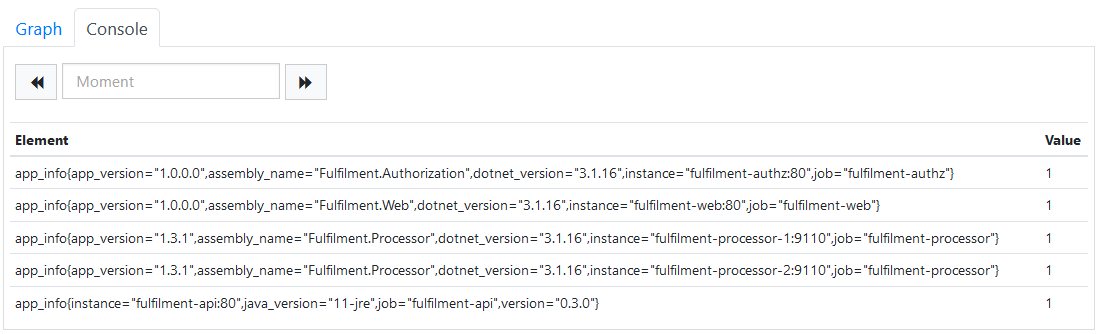
- the
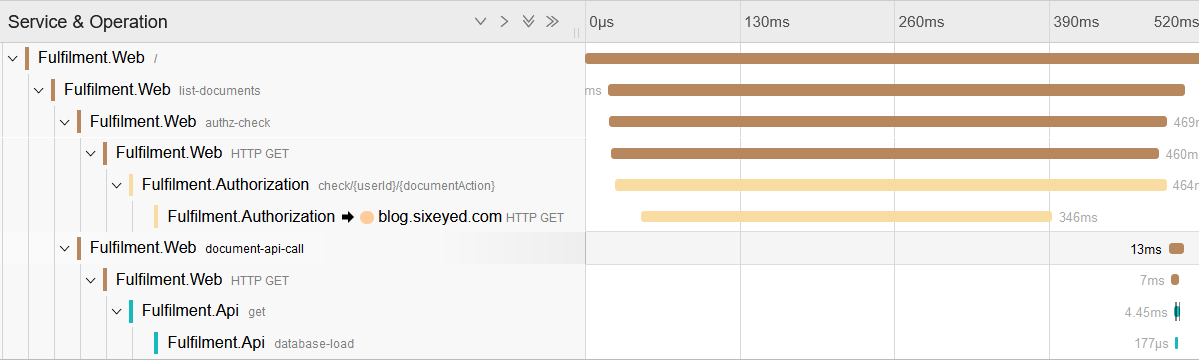
Fulfilment.Authorizationservice traces in Jaeger at http://localhost:16686 should show 10 spans:
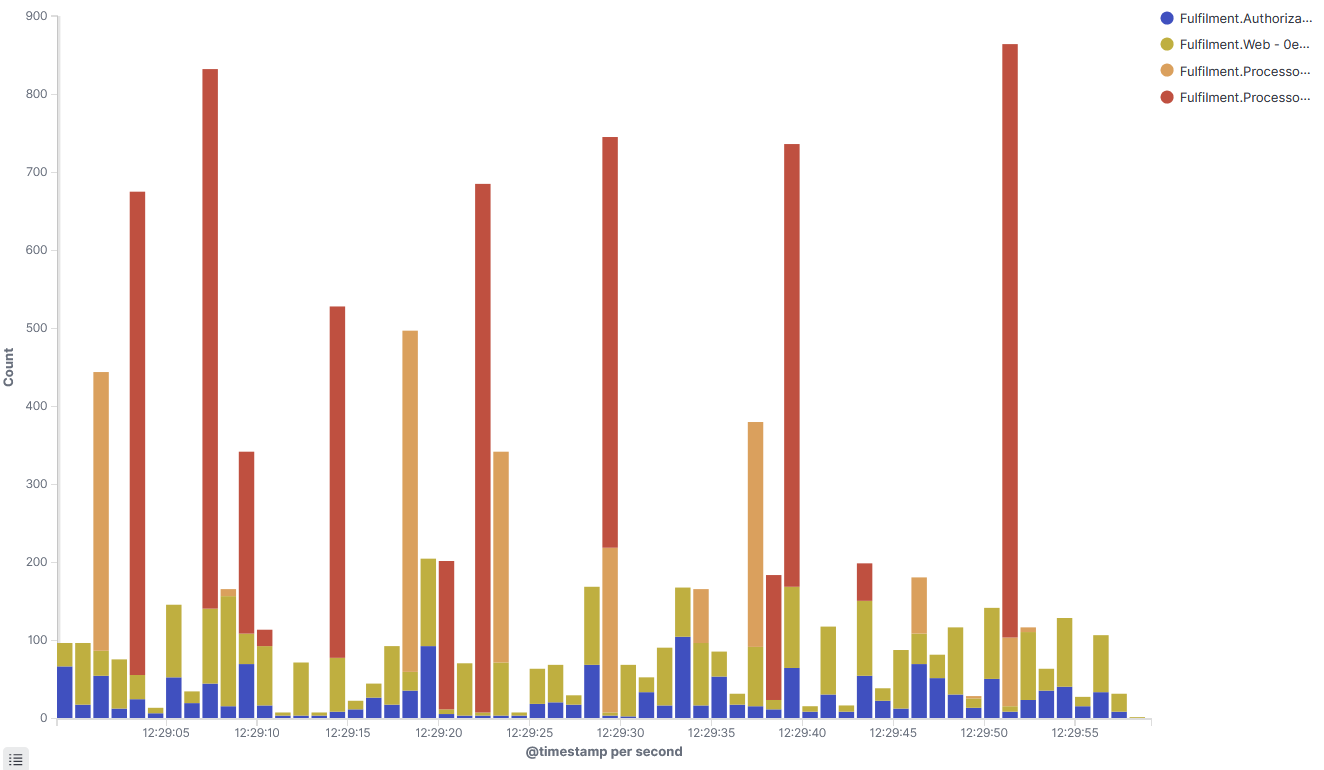
- an area visualization in Kibana at http://localhost:5601 showing count of documents over time, split by
AppNameand byMachineName, should show four application instances writing logs:
This is not meant to be a Docker troubleshooting exercise - all the app and networking configuration is in Docker Compose, so there may be issues there or in the observability component configuration.
When you find issues, update the files to fix them and run this to restart the containers:
docker compose -f labs/troubleshooting/metrics.yml -f labs/troubleshooting/logging.yml -f labs/troubleshooting/tracing.yml -f labs/troubleshooting/apps.yml restartDon't go straight to the solution! These are the sort of issues you will get all the time, so it's good to start working through the steps to diagnose problems.
<!-- troubleshooting:auto -->
If something goes wrong
Cannot connect to the Docker daemon - Docker Desktop is not running.
Start it and wait until the whale icon stops animating.
port is already allocated - a container from an earlier lab is still
holding that port. See what is running with docker ps, then remove the old
container with docker rm -f <name>.
The container name "/..." is already in use - same cause, same fix:
docker rm -f <name>, then run the command again.
unable to prepare context: path ... not found on a build - you are in the
wrong folder. Every command in this lab assumes you are at the root of this
repository.
A docker run that prints usage text instead of working - some commands in
this lab are meant to fail, to show you what a wrong argument looks like. Read
the text around the command before assuming it is broken.
Still stuck? The Cleanup section below resets everything, so you can start the lab again from a clean machine.
Cleanup
Clean up by removing this lab's containers:
docker compose -f labs/troubleshooting/metrics.yml down
docker compose -f labs/troubleshooting/load.yml down
This removes only the containers this lab started. If you want a clean slate,
docker pswill show anything still running.