
Tools
On this page
Tools
Kubectl is great but sometimes you need something else to help you navigate your cluster.
These exercises will walk you through some of the more popular tools.
Reference
Do this first if you use Docker Desktop
There's a bug in the default RBAC setup in Docker Desktop, which means permissions are not applied correctly. If you're using Kubernetes in Docker Desktop, run this to fix the bug:
# on Docker Desktop for Mac (or WSL2 on Windows):
sudo chmod +x ./scripts/fix-rbac-docker-desktop.sh
./scripts/fix-rbac-docker-desktop.sh

# OR on Docker Desktop for Windows (PowerShell):
Set-ExecutionPolicy -ExecutionPolicy Unrestricted -Scope Process -Force
./scripts/fix-rbac-docker-desktop.ps1Dashboard
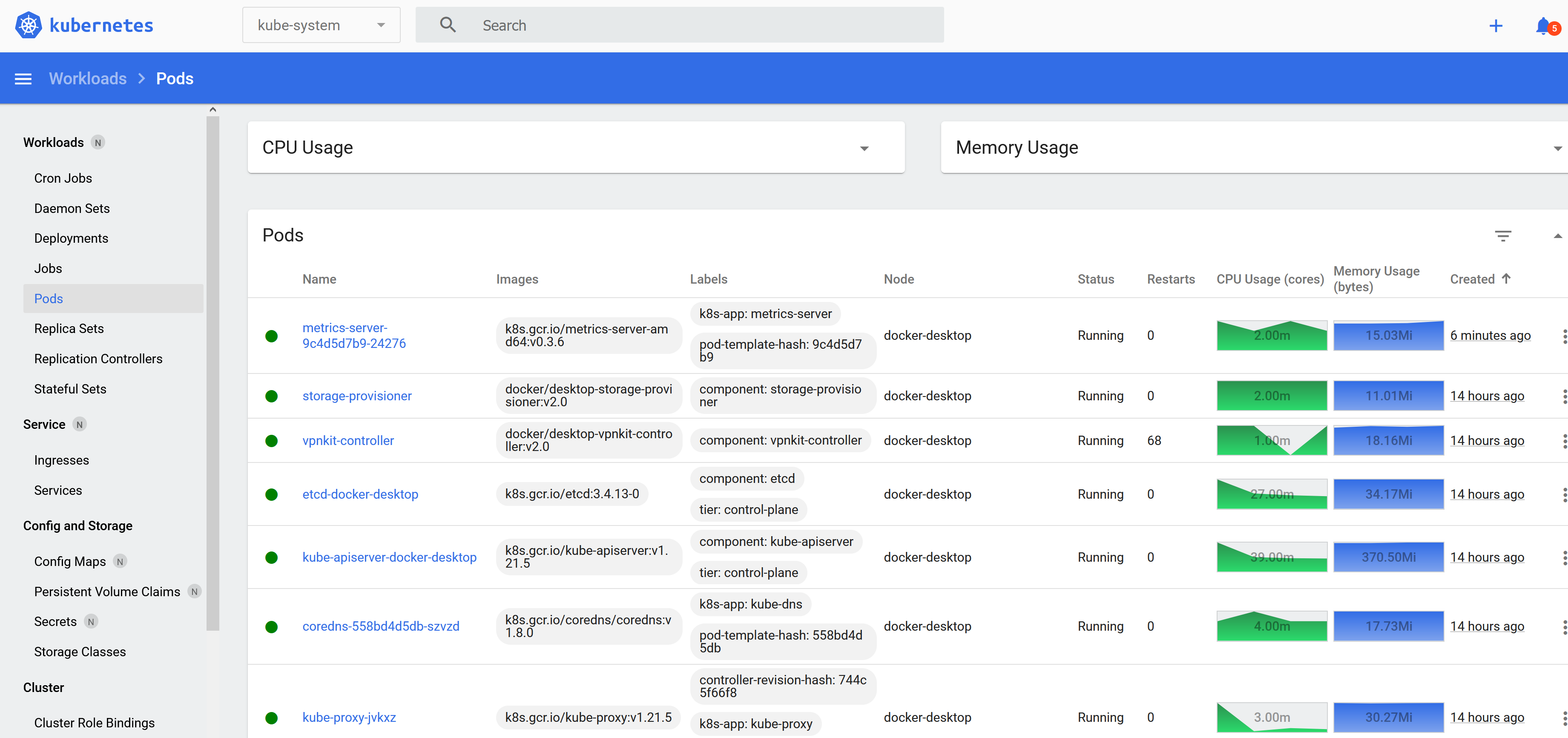
This is the standard web UI for the Kubernetes project:
Deploy metrics server:
kubectl top nodes

# if you get no response, then install the components:

kubectl apply -f labs/tools/specs/metrics-server
Deploy some resources so we have something to see:
kubectl apply -f labs/tools/specs/rngCheck the app is working at http://localhost:30080 - click Go and you should see a random number
Now deploy the dasboard:
kubectl apply -f labs/tools/specs/dashboardThis setup includes a ServiceAccount we can use to authenticate with the web UI:
kubectl describe sa rng-admin-user -n kubernetes-dashboard

kubectl get secret -n kubernetes-dashboard rng-admin-user-token
SA auth tokens are stored in Secrets of the special type
kubernetes.io/service-account-token. Wnen you create those Secrets, Kubernetes generates the token
Print the auth token:
kubectl -n kubernetes-dashboard get secret rng-admin-user-token -o go-template="{{.data.token | base64decode}}"Copy the value to the clipboard, and use it to log in at https://localhost:30043
- Accept security risk - this deployment uses a self-signed SSL cert
- Paste token - those are your admin creds
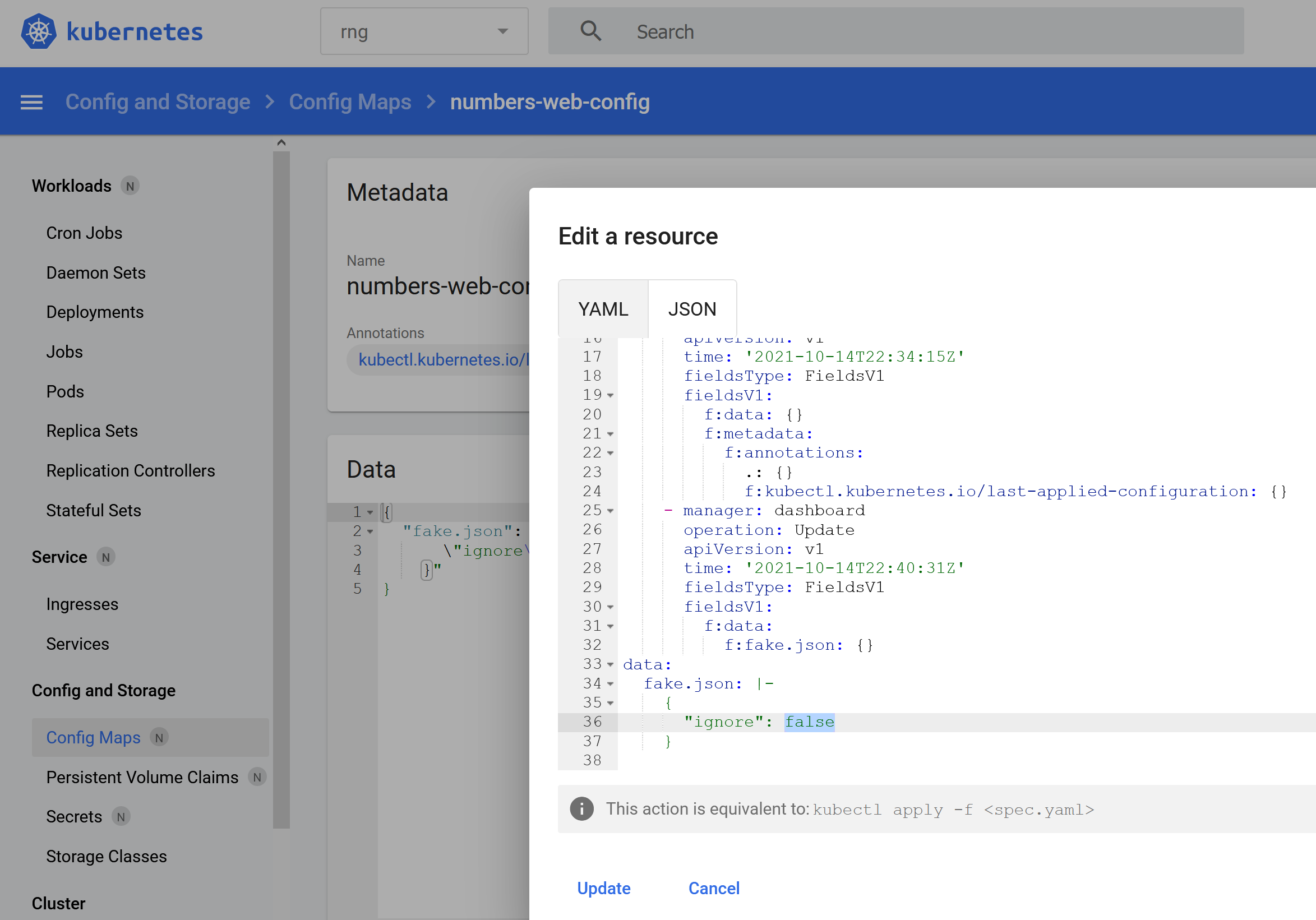
- Empty screens, browse around - change ns
- Can view Pods etc. in all ns - not secrets
- Pods - check logs, exec
- Can view all in rng ns
- Can edit only in rng ns
This SA doesn't have full permissions, so you can only edit in the rng namespace.
K9s
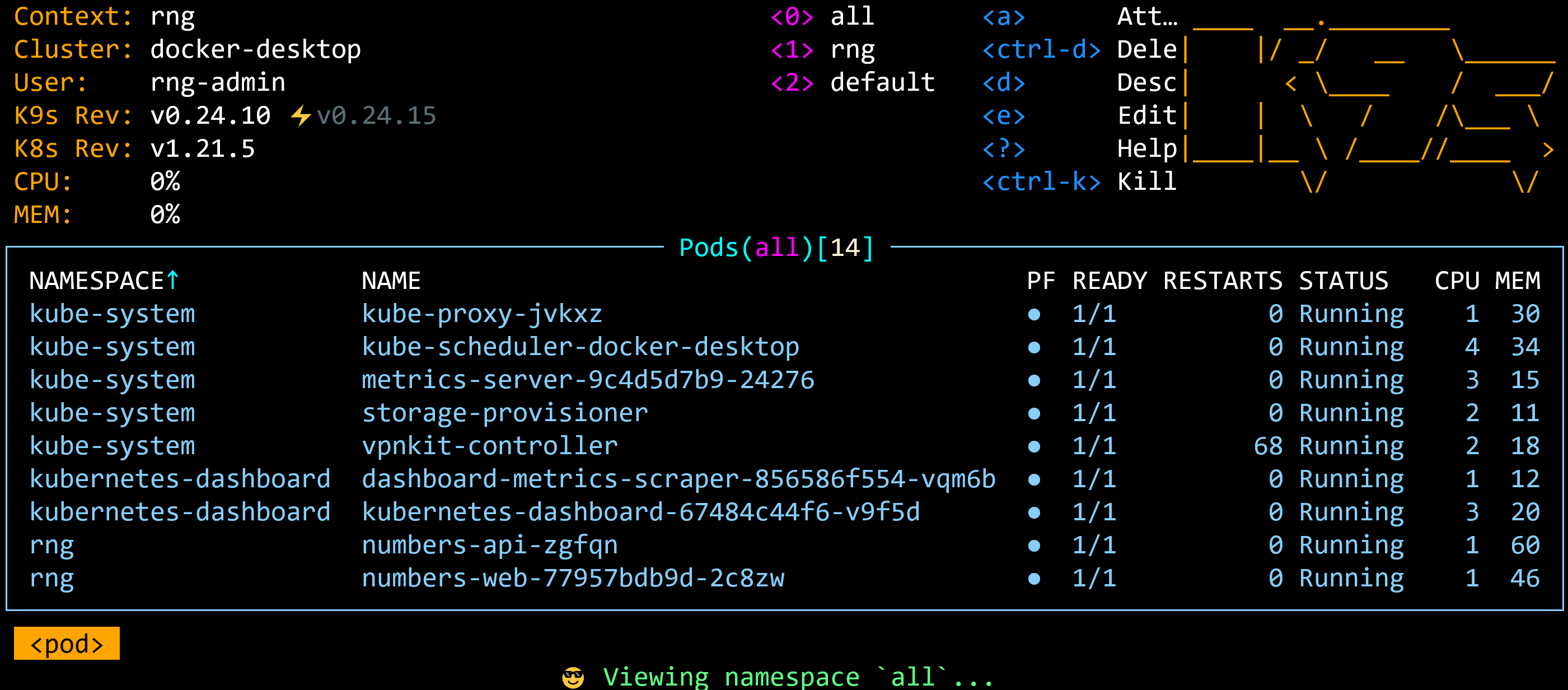
K9s is terminal-based GUI for navigating Kubernetes clusters: https://github.com/derailed/k9s#installation
# Windows - you need to be an admin user
choco install k9s

# Mac
brew install k9s

# Linux
curl -sS https://webinstall.dev/k9s | bash
Run in read-only mode - this uses your default cluster admin context:
k9s --readonlyKeyboard navigation
- numbers to switch ns
- 0 for all
- up/down to select pod
- l for logs
- esc to go back
Switch resources:
- :svc
- :cm
- :secrets - x to decode
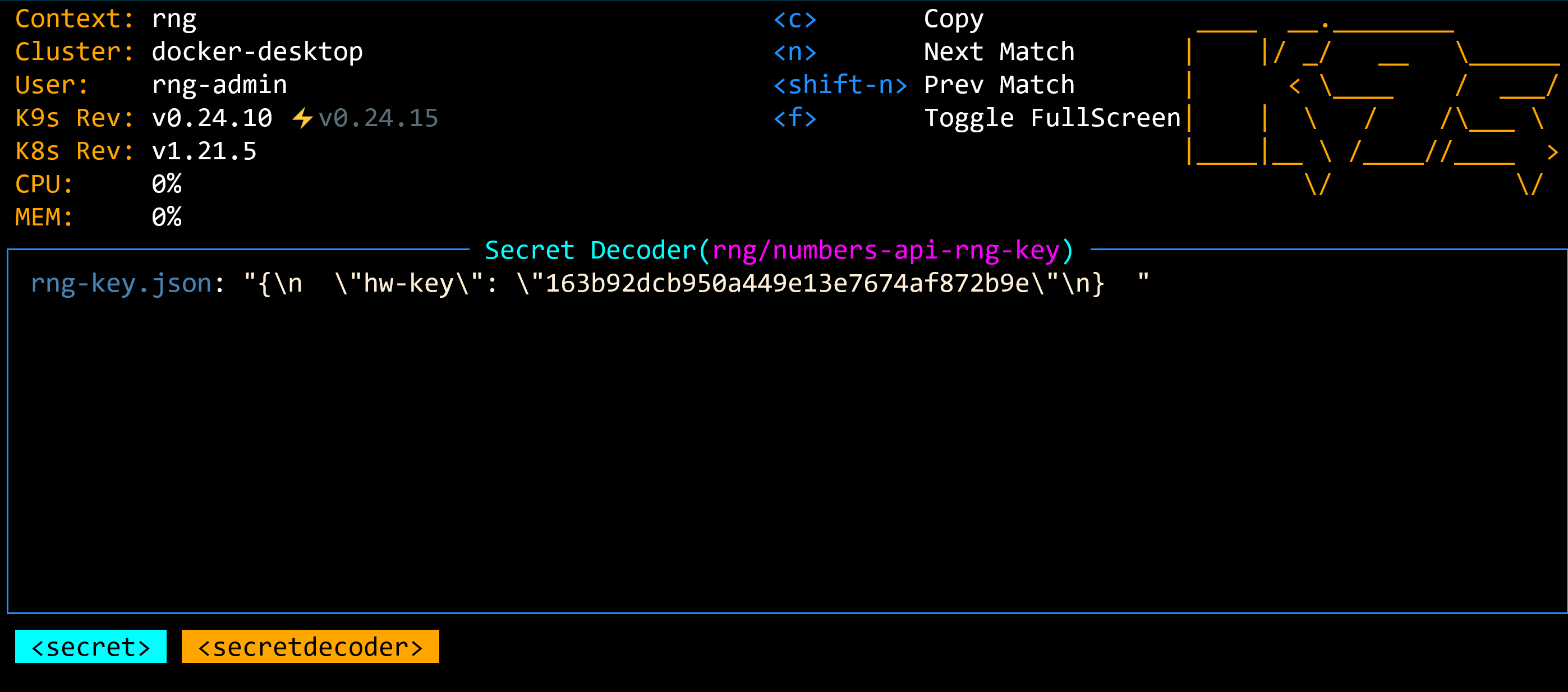
Ctrl-C to exit
Create a context for the RNG admin user
kubectl -n kubernetes-dashboard get secret rng-admin-user-token -o go-template="{{.data.token | base64decode}}"

kubectl config set-credentials rng-admin --token=<your-sa-token>

kubectl config get-contexts

kubectl config set-context rng --user=rng-admin --cluster=<your-cluster-name>
Launch k9s as rng user:
k9s -n rng --context rng- navigate, can see pods but only shell into rng pods
- :secrets - error
- back to :pods, select rng ns 1
- :secrets - u to check usage
Kubectl plugins - Krew
You can add plugins to extend Kubectl's functionality - Krew is a plugin manager.
Start by installing Krew - the setup is different for different OS: https://krew.sigs.k8s.io/docs/user-guide/setup/install/
Add to path and restart shell (or restart Code)
kubectl krew

kubectl krew search rbac
Will likely need admin permissions
kubectl krew install rbac-view

kubectl rbac-view
Browse to URL; comprehensive but unwieldy
kubectl krew install who-can

kubectl who-can get secrets -n rng
Not complete
kubectl auth can-i get secrets -n rng --as system:serviceaccount:kubernetes-dashboard:rng-admin-userkubectl krew install access-matrix
kubectl access-matrix --sa kubernetes-dashboard:rng-admin-user
kubectl access-matrix --sa kubernetes-dashboard:rng-admin-user -n rngKubewatch (Slack integration)
This is a great tool for notifying you about changes in your environment. You need admin access to a Slack workspace to set it up.
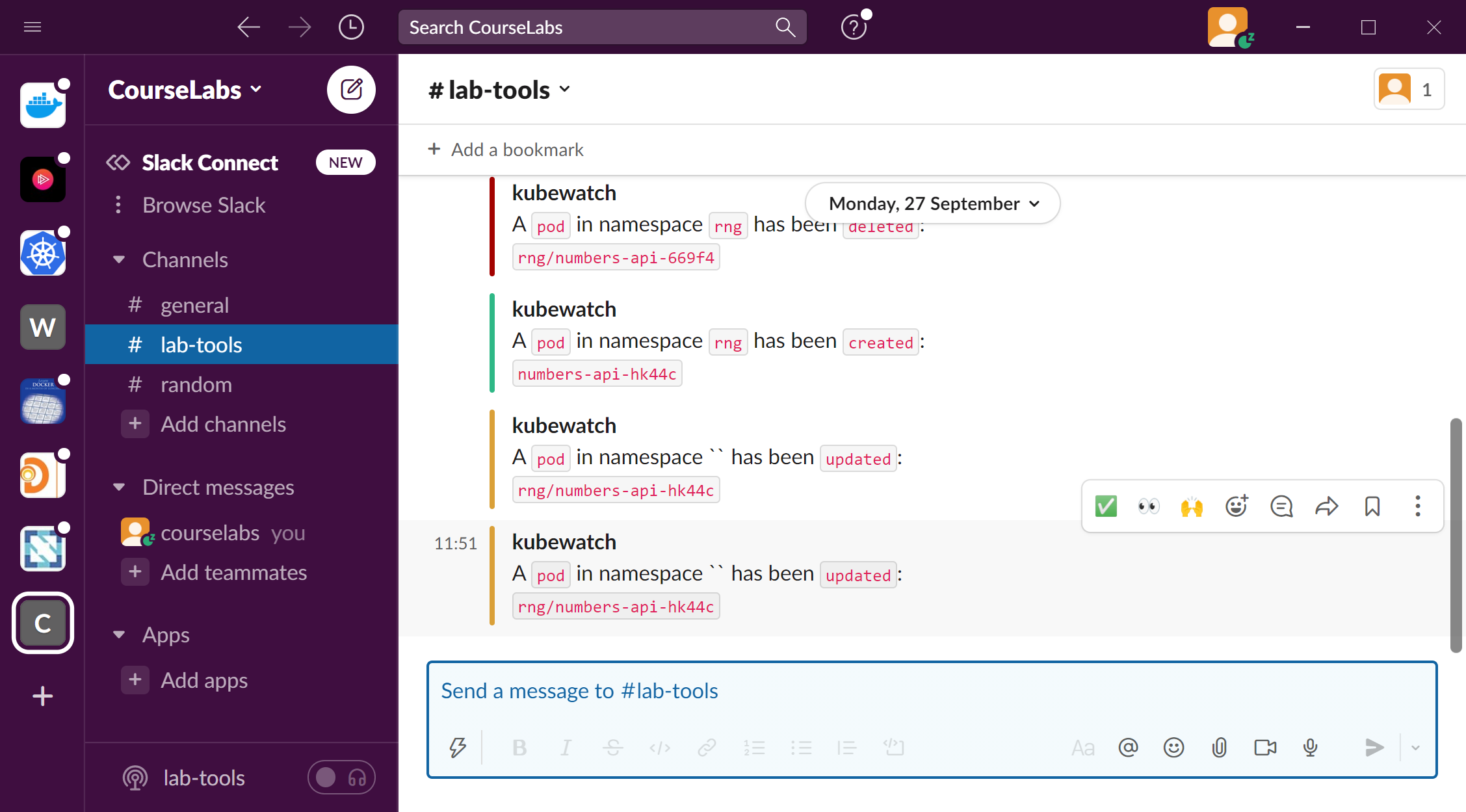
Slack - create new workspace, call the first channel lab-tools
- https://slack.com/intl/en-gb/get-started#/createnew
Add the bot app to get an API token, call it kubewatch:
- https://courselabsworkspace.slack.com/apps/A0F7YS25R-bots?utm_source=in-prod&utm_medium=inprod-btn_app_install-index-click&tab=more_info
- in the channel -
/invite @kubewatch
Install the server componentes with Helm:
helm repo add bitnami https://charts.bitnami.com/bitnami

helm install kubewatch -n default --values=labs/tools/kubewatch/values.yaml --set='slack.channel=#lab-tools,slack.token=<YOUR-TOKEN>' bitnami/kubewatch
Check the install:
kubectl logs -n default -l app.kubernetes.io/name=kubewatchIf you see an RBAC issue, it can be ignored
Try deleting a Pod and see the notifications in Slack:
kubectl delete po -n rng -l app=numbers-apiCleanup
Delete the namespaces & RBAC used for the RNG app and the Dashboard:
kubectl delete ns,clusterrolebinding -l kubernetes.courselabs.co=toolsDelete metrics server if you deployed it:
kubectl delete -f labs/tools/specs/metrics-serverAnd uninstall Kubewatch if you deployed it:
helm uninstall kubewatch