
Building Docker Images with Jenkins
On this page
Building Docker Images with Jenkins
You can run containers which have access to the Docker engine - so the app inside the container can use the Docker CLI to run other containers or build images. That makes for a nice clean CI/CD setup, where you run Jenkins in a container using pipelines which build your applications with multi-stage Dockerfiles. The pipelines can also run containers from the new images to smoke test the functionality.
With this approach your whole build infrastructure is portable. You can run a Jenkins server on any Docker engine, load in your pipelines and build any type of software without installing any other tools. You can also save credentials in Jenkins so you can authenticate with other services - then you can push images to Docker Hub or deploy to your production environment from your pipeline.
References
Build a Simple Java Image
We'll start by building this Dockerfile, using this Jenkinsfile. That will package a pre-built Java app into a Docker image and run a container from the image. If the build or the test stages fail then the pipeline fails.
Start by running Jenkins and Gitea using this Docker Compose spec:
docker compose -f labs/pipeline/infra/docker-compose.yml up -dThe Jenkins service is configured to mount the Docker socket, which is how the container can talk to the Docker Engine where it's running.
This is a new Gitea server with an empty database, so create your user first:
docker compose -f labs/pipeline/infra/docker-compose.yml exec -u git gitea gitea admin user create --admin --username student --password student --email [email protected] --must-change-password=falseThen set it up for our repo:
- browse to http://localhost:3000
- sign in with username
studentand passwordstudent
- click the plus icon
+in the My Repositories section to create a new repo
- call the repo
devsecopsand click Create Repository
Add your Gitea server as a remote and push the repo to it:
# you may already have this set up from the Jenkins lab - ignore any errors you see:
git remote add gitea http://localhost:3000/student/devsecops.git

git push gitea main
Now we can create a pipeline in Jenkins with:
- job name =
docker - Git URL =
http://gitea:3000/student/devsecops.git - branch specifier =
refs/heads/main - Jenkinsfile path =
labs/pipeline/docker/Jenkinsfile
📋 Open the Jenkins UI and create the new pipeline job.
Not sure how?
- browse to http://localhost:8080
- log in with username
studentand passwordstudent - click on New item in the left nav
- select Pipeline as the project type
- in the pipeline window select Pipeline script from SCM in the dropdown
- enter the pipeline details
Save and run the build.
📋 Check the build output. What is the name of the Docker image that it built? And what is the output from the test container?
Not sure?
Open the logs from the Build stage and you'll see the image tag is docker.io/courselabs/hello-world:1.
In the Test stage logs you'll see the container output is the string Hello, World.
This is a simple example, but we don't want to just package binaries into images - we want to build them from source code, which we can do with a multi-stage build.
Multi-stage Builds in Jenkins
There's nothing special about multi-stage builds - any Docker builds we can run on the laptop work just the same in the Jenkins container:
- multi-stage/Dockerfile - builds the same Java app from source, so we no longer need a separate compilation step
- multi-stage/Jenkinsfile - builds the image using environment variables to generate the tag, then runs a test container
Those files are already in your Gitea server, so you can create a new pipeline in Jenkins to run the script in labs/pipeline/multi-stage/Jenkinsfile.
📋 Create and run a new pipeline called multi-stage.
Not sure how?
Create a new item in the Jenkins UI at http://localhost:8080/view/all/newJob, call it multi-stage, set the type to be Pipeline and enter docker in the box to Copy from an existing pipeline.
Change the script path to labs/pipeline/multi-stage/Jenkinsfile.
Click Save and then Build Now.
The build runs with the familiar stages we've been using. Remember that Jenkins is sharing your Docker Engine, so when it builds images they're available for you to use in docker commands.
📋 What is the size of the new image from the build? How does it compare to the SDK?
Not sure?
You can list images on your machine to see the details:
# image built from pipeline:
docker image ls courselabs/multi-stage:1

# java sdk image from Docker Hub:
docker pull eclipse-temurin:25-jdk
docker image ls eclipse-temurin:25-jdk
Your application image is smaller than the SDK image - it carries the Java runtime but not the compiler and build tools. With these Temurin images the saving is around 100MB; the
-jreimage is roughly four fifths of the-jdk. Base the final stage on a slimmer image (an Alpine JRE, say) and the gap gets much wider - that's what thewhoamibuild in the multi-stage lab does withscratch.
Building with Docker Compose
This Jenkins container image also has the docker compose command installed, so we can build multiple images from one command.
We'll be building the random number app from source:
- compose/Jenkinsfile - builds the app in the
labs/compose-build/rngfolder; the Push stage is commented out so only the Build stage will run
- the API Dockerfile - is a multi-stage build using the .NET SDK and runtime images
So this is a .NET app. To be sure we're not cheating, run this command inside the Jenkins container to confirm that .NET is not installed:
# this will fail
docker compose -f labs/pipeline/infra/docker-compose.yml exec jenkins dotnet --version
You'll see a
not found in $PATHerror because there is no .NET in the container. That's OK though because it's a multi-stage build and the compilation will run inside containers.
📋 Create and run a new pipeline called compose from the script path labs/pipeline/compose/Jenkinsfile.
Not sure how?
Create a new item in the Jenkins UI at http://localhost:8080/view/all/newJob, call it compose, set the type to be Pipeline and enter docker in the box to Copy from an existing pipeline.
Change the script path to labs/pipeline/compose/Jenkinsfile.
Click Save and then Build Now.
Check the output - the build should run successfully and generate images.
📋 How many images are built? Where does the 21.12 part of the image tag come from?
Not sure?
The logs from the Build stage will show two images being built: courselabs/rng-api:21.12-1 and courselabs/rng-web:21.12-1.
21.12 is the release cycle, which is set in an environment variable in the Jenkinsfile.
Environment variables are used for the registry and repository names in the image tag, so they can be easily edited to change where the images get pushed.
Pushing to Docker Hub
The publish part of our pipeline will push images to Docker Hub. For that you'll need three things:
- a Docker Hub account - create one if you don't already have one; the free tier is fine
- your Docker Hub credentials stored in Jenkins
- a change to the Jenkinsfile so the image tags have your Docker Hub username
When you have a Docker Hub account, you can browse to your settings and generate an access token. Copy the token to your clipboard - you can use it to log in so you don't store your actual password in Jenkins.
Now create a credential in Jenkins:
- browse to Manage Jenkins > Credentials > System > Global credentials (http://localhost:8080/manage/credentials/store/system/domain/_/)
- click Add Credentials and make sure the Kind is Username with password
- enter your Docker Hub username (not your email address) in the Username field
- enter your access token in the Password field
- call the credential
docker-hubin the ID field
Next edit the Jenkinsfile:
- replace the value of the environment variable
REPOSITORY="courselabs"with your own Docker Hub ID - e.g. my Hub ID is
sixeyedso my updated setting will readREPOSITORY="sixeyed" - uncomment the Push stage - delete the start
/*and end*/comments
Push your changes:
git add labs/pipeline/compose/Jenkinsfile

git commit -m 'Added push'

git push gitea main
📋 Build the compose job again and verify the images are built and pushed to Docker Hub under your username.
Not sure how?
Check all the build stages. If the Push stage fails, check the logs. The issue will be a problem authenticating to Docker Hub:
- check your
docker-hubcredentials in Jenkins are correct - check your
REPOSITORYenvironment variable matches the Docker Hub ID in the credentials - verify the images are being built with the expected image name, containing your Docker Hub ID
If you get an error message it should be clear what the issue is. When you get the build working you'll see images being pushed to Docker Hub, like mine at https://hub.docker.com/r/sixeyed/rng-api/tags
You probably don't have Jenkins, Gitea or .NET installed on your machine. But now you can build and push Docker images for a .NET app with a fully automated pipeline, which brings in all the dependencies it needs.
Lab
Docker image tags are typically used for versioning. Our images contain a release cycle and a build number as the image version. We also want to provide less specific versions of the image, e.g.
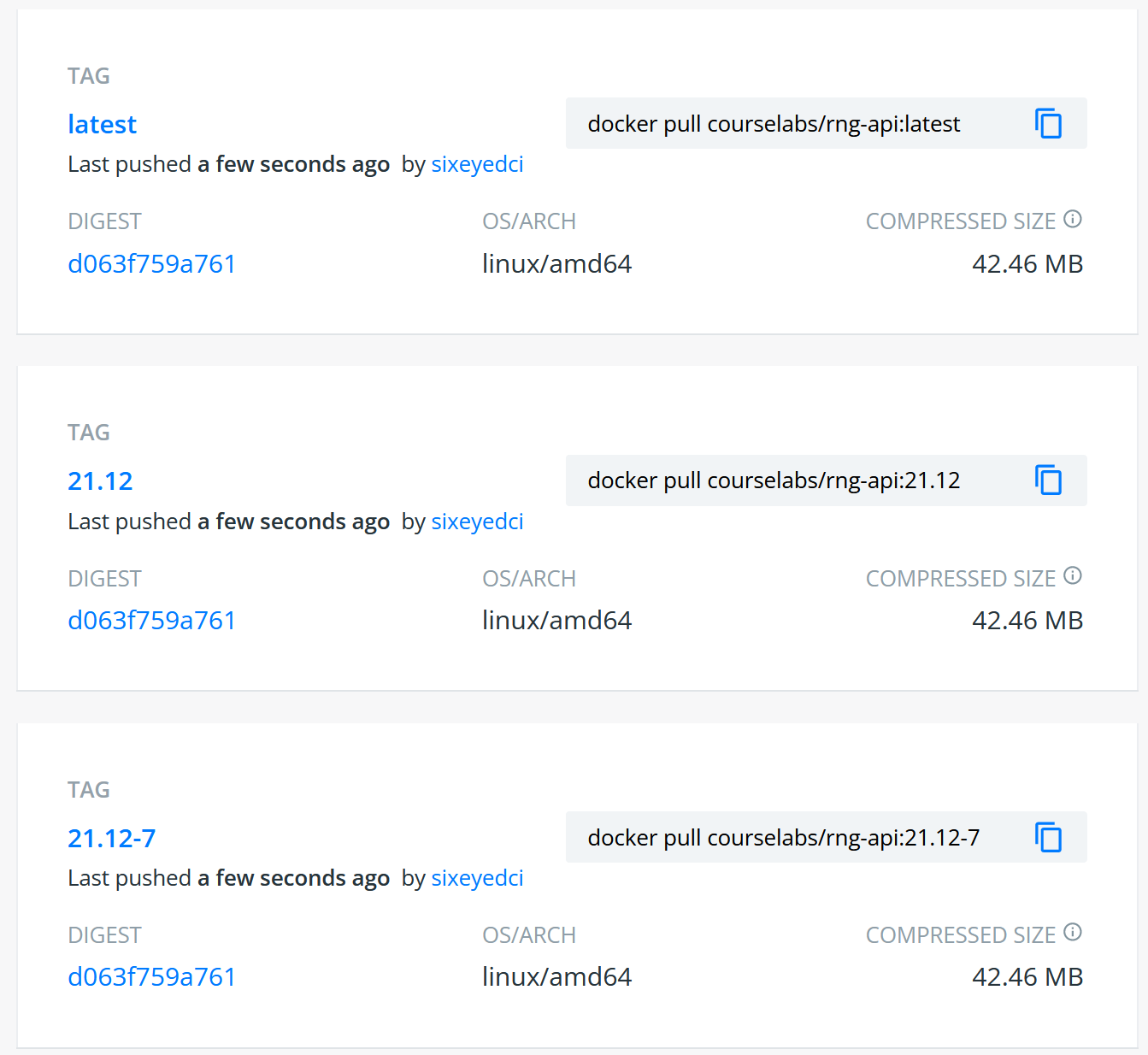
courselabs/rng-api:21.12-3- is build 3 of the 21.12 releasecourselabs/rng-api:21.12- is the latest build of the 21.12 releasecourselabs/rng-api:latest- is the latest build of the latest release
latest is the default tag, so users can run a container from courselabs/rng-api to get the latest version, or courselabs/rng-api:21.12 to get the latest build for the release, or courselabs/rng-api:21.12-3 to run a specific build.
There are some additional Compose overrides we can use to build images with the extra tags:
Extend the Jenkinsfile to add those tags and push them to Docker Hub as part of the build. The goal is for each build to push the specific image tag and update the other tags, so they work as aliases for the same image digest:
You'll need to push your Jenkinsfile changes to Gitea and run a new build in Jenkins. When you have it all working, pull the latest image using Docker on your machine. Can you find the build information and Git hash from the metadata?
Cleanup
Clean up by removing this lab's containers:
docker compose -f labs/pipeline/infra/docker-compose.yml down -v
-vremoves the anonymous volumes too. Without it Gitea's database survives, and the next run of this lab fails at the user-creation step withuser already exists.
This removes only the containers this lab started. If you want a clean slate,
docker pswill show anything still running.
And remove the Gitea remote:
git remote rm gitea