

Automation with Jenkins
On this page
Automation with Jenkins
Jenkins is probably the most widely used automation server around — widely used rather than widely loved. It has been going a long time and its main feature is extensibility: a plugin framework with more than 1,800 published plugins, so it can build any kind of application and integrate with any third-party system. There's a web UI for defining jobs, and those job definitions get stored on the server's filesystem.
The UI and the plugins are also the main reasons people dislike Jenkins. Plugins are a recurring source of security advisories so they need frequent updates, and they're fiddly to automate. You often find Jenkins servers kept alive long past their retirement date, because nobody is confident they could recreate the exact set of plugins and reload the job definitions on a new server.
We'll use Jenkins the other way round: minimal plugins, job definitions in source control.
Reference
- Jenkinsfile walkthrough
- Declarative Pipeline syntax
- Pipeline steps reference
- Configuration as Code (JCasC)
Running Jenkins
Start Jenkins and a local Git server (Gitea):
docker compose -f labs/jenkins/infra/docker-compose.yml up -dThe Jenkins image is built from this Dockerfile. The plugins and the admin user are baked in with Configuration as Code, so there's no setup wizard and no
initialAdminPasswordto dig out of the logs.
Check both containers are running:
docker compose -f labs/jenkins/infra/docker-compose.yml psSet up the Git server
Gitea starts with an empty database, so create a user for yourself:
docker compose -f labs/jenkins/infra/docker-compose.yml exec -u git gitea gitea admin user create --admin --username student --password student --email [email protected] --must-change-password=false
--must-change-password=falsematters: without it Gitea forces a password change at first login, which breaks the Jenkins credentials later in the lab.
Browse to Gitea at http://localhost:3000 and sign in with student / student.
Sign in to Jenkins
Browse to http://localhost:8080. It may take a minute on first start — Jenkins is loading its plugins. Sign in with:
- username:
student - password:
student
Have a look around. It's resolutely "web 1.0". The left nav has the main options including Manage Jenkins; the middle of the page lists your jobs once you have some.
Creating a Freestyle Job
Let's start with a classic Jenkins job — the freestyle type, where you build the steps up in the web UI:
- click Create a job on the home screen
- name it
lab-1 - choose Freestyle project
- click OK
The config page has sections for the typical parts of a build: source code, build triggers, build steps.
We'll run a simple script that prints some text:
- scroll to the Build Steps section
- click Add build step
- select Execute shell
- paste this into the Command box:
echo "This is build number: $BUILD_NUMBER of job: $JOB_NAME"- click Save
Jenkins sets a bunch of environment variables when it runs a job, and your steps can read them. This script prints the build number — which increments every run — and the job name.
You're now on the job page. The left nav lets you reconfigure it; the middle shows recent runs.
Click Build Now. When it finishes, check the output at http://localhost:8080/job/lab-1/1/console
📋 Run the job again — how is the output different?
Not sure?
Click Build Now again. When it completes the output is at http://localhost:8080/job/lab-1/2/console
The job name is the same; the build number has incremented.
This Jenkins server has other tools installed, the kind you'd use in a real pipeline. What happens if you print their versions?
📋 Edit the job to print the versions of javac and docker, and then to list
Kubernetes nodes with kubectl get nodes.
Not sure how?
Click Configure on the job page. Update the Command box:
javac --version

docker version

kubectl get nodes
Click Save, then Build Now.
The build fails. Shell commands return an exit code: 0 means success,
anything else means failure. javac and docker work — the Docker CLI is in
the image and the container has the host's Docker socket mounted. But
kubectl get nodes has no cluster to talk to, so it exits non-zero, and
Jenkins marks the step as failed.
If there were more steps after this one they would not run: the job stops at the first failure.
So where does this job definition actually live? On the Jenkins server's filesystem. How would you move it to a new server? How would you review a change to it? This is why we use pipelines instead, with the definition in source control.
Pipelines
Pipelines come from the workflow-aggregator plugin, which is already
installed. A pipeline job runs a script — a Jenkinsfile — written in a
declarative syntax.
Older versions of this lab used the Blue Ocean UI for a visual pipeline editor. Blue Ocean is no longer maintained; the built-in Pipeline UI with the Stage View is what Jenkins ships today, and it's what we'll use.
Create a new job:
- browse to http://localhost:8080/view/all/newJob
- name it
lab-2 - choose Pipeline
- click OK
Scroll to the Pipeline section at the bottom. Leave the definition as Pipeline script and paste this in:
pipeline {
    agent any
    stages {
        stage('Audit') {
            steps {
                echo "This is build number: ${env.BUILD_NUMBER} of job: ${env.JOB_NAME}"
                sh 'javac --version'
            }
        }
    }
}
Click Save, then Build Now.
📋 Open the job page. How is the display different from the freestyle job?
Not sure?
You get a Stage View — a grid with one column per stage, showing how long each one took and whether it passed. With a single stage it isn't impressive; add stages and it becomes the fastest way to see where a build spends its time and where it breaks.
Click into the build and then Console Output for the full log.
This is better than a freestyle job, but the definition is still stored in Jenkins. Next we'll move it into Git.
Storing Pipelines in Source Control
We'll use this Jenkinsfile next. It has several
stages, and the interesting one is Deploy: it uses an input block to ask a
human for confirmation before continuing.
First we need the lab repo on our local Git server so Jenkins can fetch it.
In Gitea at http://localhost:3000, click the + in the top right and choose New Repository:
- set Repository Name to
devsecops - leave everything else at the defaults
- click Create Repository
Now add your local Gitea server as a remote for this repo and push:
git remote add gitea http://localhost:3000/student/devsecops.git

git push gitea main
Your Git client will ask for credentials — use
student/student.
Check http://localhost:3000/student/devsecops and you'll see all the lab content. It's your own private GitHub.
Back in Jenkins, create another job at http://localhost:8080/view/all/newJob:
- name it
manual-gate - choose Pipeline
- click OK
Scroll to the Pipeline section:
- set Definition to Pipeline script from SCM
- set SCM to Git
- set Repository URL to
http://gitea:3000/student/devsecops.git - click Add next to Credentials, choose Jenkins, and add a
Username with password credential: username
student, passwordstudent. Then select it in the dropdown. - change Branch Specifier from
*/mastertorefs/heads/main - set Script Path to
labs/jenkins/manual-gate/Jenkinsfile
Jenkins uses
giteaas the hostname, notlocalhost. Both containers are on the same Docker network, so Jenkins resolvesgiteaby DNS. From your machine the same server islocalhost:3000, because that's the published port.
Save and run the build. It gets through Build and Test, then stops and waits for you.
📋 In the job UI, how do you let the Deploy stage proceed and finish the build?
Not sure?
The Stage View shows a box per stage; the finished ones are green. The Deploy box is paused and waiting.
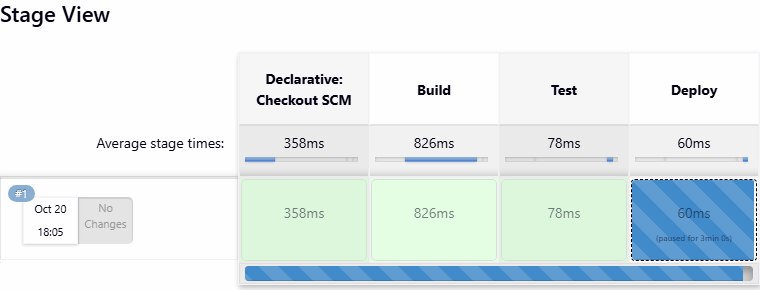
Hover over the paused stage and click the prompt (or open the build and use the Paused for Input link). You'll get the confirmation dialog defined in the Jenkinsfile. Click Do it! and the build continues.
input blocks are genuinely useful: you can automate the entire deployment and
still require a human decision at the point where that matters.
Lab
Your turn. There's another pipeline in this repo that builds and runs a simple
Java app. The Jenkinsfile is at
labs/jenkins/hello-world/Jenkinsfile:
- create a new job to run that pipeline
- add a build trigger that polls SCM for changes every minute
- the build will fail 🙂 You'll need to fix the Jenkinsfile and push the change
to your Gitea server
- once it's building, where do the compiled binaries end up?
Use these commands to push your fix:
git add labs/jenkins/hello-world/Jenkinsfile

git commit -m 'Lab solution'

git push gitea mainCleanup
Remove the lab containers:
docker compose -f labs/jenkins/infra/docker-compose.yml down -v
-vmatters. Both images declare aVOLUME, so Compose keeps an anonymous volume behind when you only rundown. Gitea's database survives in it, and running the lab again fails at the user-creation step withuser already exists.
And remove the Gitea remote so it doesn't confuse later labs:
git remote rm gitea